Guides

The most reliable ways to export a PowerPoint file to PDF, plus fixes for the formatting issues that most commonly go wrong.
In PowerPoint, go to File > Export > Create PDF/XPS Document. This uses PowerPoint's own rendering engine, so fonts, spacing, and embedded objects convert accurately in almost all cases — it's more reliable than third-party online converters for anything with custom formatting, and it doesn't require uploading your file to an unfamiliar website.
Go to File > Options > Save and enable "Embed fonts in the file." This ensures your chosen fonts travel with the presentation and render correctly even on a computer that doesn't have them installed — this single setting prevents the majority of PDF formatting problems.
Click through every slide and confirm that all images display correctly with the file open, not just as thumbnails in the slide panel. A broken image link in PowerPoint will also appear broken in the exported PDF, and it's much easier to fix while you're still in the source file.
The standard PDF export only includes the slide content, not your speaker notes. If you want a version with notes included, use File > Print > Print Notes Pages, then choose "Save as PDF" instead of printing to paper. This is useful if you want to submit a version of your presentation that also documents what you planned to say.
A PDF exported from a presentation with many high-resolution images can end up surprisingly large. Under File > Options > Save > Image Size and Quality, you can reduce the default resolution PowerPoint uses when embedding images, which noticeably shrinks the resulting PDF without a visible quality loss on a typical screen or projector.
Continue reading similar articles.

Practical safety checks before downloading a presentation from the web, plus how to edit it properly once you have it.
Read article
Learn how to search PPT Finder for free seminar PowerPoint presentations, filter useful decks, and download slides without wasting time.
Read article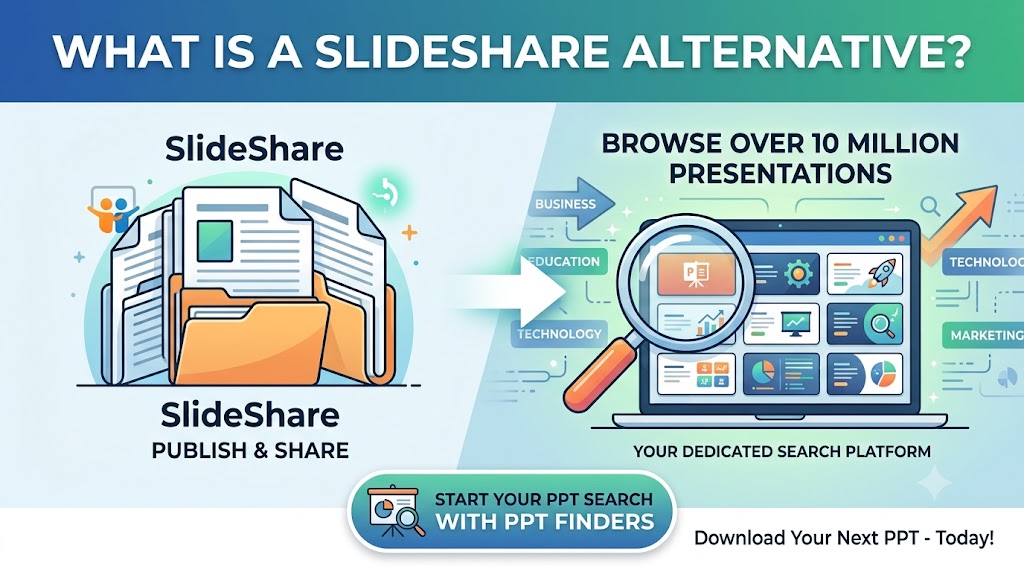
Looking for a SlideShare alternative to find PowerPoint presentations? Discover how PPT Finders helps students and professionals search for presentations by topic and find useful PPT resources faster.
Read article